How do I add multiple destinations in Google Maps on my phone?
Open Google Maps, tap 'Directions', enter your first destination. Then tap the three dots in the top right, select 'Add stop', and repeat for all locations. You can drag to reorder them.
Can I optimize the route for multiple stops in Google Maps?
Yes, after adding multiple stops, Google Maps often suggests the most efficient route. For more advanced optimization, especially with many stops, consider third-party route planners that integrate with Maps.
How do I save a custom map with many locations?
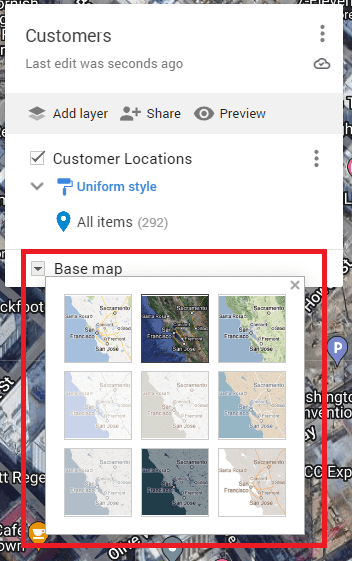
Use Google My Maps on a desktop browser. Create a new map, add layers and pins for your locations, then save it. You can access these custom maps on your mobile device through the Google Maps app.
What's the best way to share a multi-stop route with friends?
Once you've plotted your route with multiple stops in Google Maps, tap 'Share directions'. This generates a link that your friends can open directly in their Google Maps app.
Can Google Maps calculate distance and time for a multi-destination trip?
Absolutely. After entering all your stops, Google Maps will automatically display the total estimated distance and travel time for the entire multi-destination route.
Are there limits to how many stops I can add to a Google Map route?
Google Maps typically allows up to 10 stops directly within the mobile app. For more than 10, or for complex itineraries, using Google My Maps or dedicated route planning software is recommended.
How do I use Google Maps for business deliveries with multiple addresses?
Input your delivery addresses as stops. For high volumes, integrate a route optimization tool with Google Maps or use Google My Maps to pre-plan and assign routes efficiently for your drivers.
Mastering Google Maps for multiple locations is essential for efficient travel and planning. This guide provides actionable steps for Gen Z and younger Millennials to effortlessly plot several destinations, optimize routes, and save custom maps for future use. Understand how to utilize key features like My Maps for complex itineraries, ensuring smooth navigation for road trips, business deliveries, or simply exploring new cities. Discover techniques to add stops, share routes, and manage saved places effectively, enhancing your mapping experience. This content focuses on practical, up-to-date methods for maximizing your Google Maps potential, making it indispensable for anyone managing multiple destinations daily. Learn to streamline your journeys and never miss a beat with these expert tips.
- How do I add multiple stops to my route on Google Maps? - To add multiple stops, open Google Maps, get directions to your first destination, then tap the three dots menu and select 'Add stop'. Repeat for each location. You can then reorder these stops easily by dragging them up or down.
- Can I optimize a multi-destination route in Google Maps for efficiency? - Yes, Google Maps will often suggest the most efficient order for your stops once you've entered them. For more complex routes or many locations, advanced users might leverage Google My Maps or third-party route optimization tools for maximum efficiency.
- What is Google My Maps and how does it help with multiple locations? - Google My Maps allows you to create personalized maps with custom markers, layers, and detailed notes. It's ideal for planning extensive multi-location trips, importing data from spreadsheets, and sharing complex itineraries with collaborators beyond the standard Maps app.
- How can I share a mapped route with multiple locations with others? - After plotting your multi-stop route in the Google Maps app, tap the 'Share directions' option. This action generates a direct link that can be sent to friends or colleagues, allowing them to open the exact route in their own Google Maps application instantly.
- Is there a limit to the number of stops I can add in Google Maps? - The standard Google Maps app typically allows users to add up to 10 stops per route directly. For itineraries involving more than ten locations, utilizing Google My Maps on a desktop or specialized route planning software becomes a more effective solution.
- How do I check real-time business hours when mapping several places? - When mapping multiple places, tap on each business pin in Google Maps to view its specific information card. This card usually displays real-time operating hours, peak times, and any temporary closures, ensuring you have the most up-to-date schedule before your visit.
- What are the benefits of mapping multiple locations for small businesses? - Mapping multiple locations greatly benefits small businesses by optimizing delivery routes, improving service efficiency, and saving fuel costs. It allows for better logistical planning, streamlined field operations, and provides clear navigation for drivers, enhancing overall productivity and customer satisfaction.
Understanding how to Map Multiple Locations On Google Maps is a fundamental skill for anyone managing complex itineraries, whether for a road trip, business deliveries, or simply exploring a new city. This guide provides direct, actionable methods for younger Millennials and Gen Z to efficiently plot several destinations, optimize routes, and save personalized maps.
Learning to effectively use Google Maps for multi-stop journeys means you can easily add stops, reorder destinations, and ensure the most efficient path. Imagine planning a day of errands across town, visiting friends in different neighborhoods, or coordinating pickups for an event; mastering these features transforms logistical challenges into smooth, guided experiences. This capability is especially vital for maximizing time and minimizing fuel consumption, offering a significant advantage for both personal and professional travel.
Frequently Asked Questions
Where are the best places to learn advanced Google Maps features for multi-stop routing?
The absolute best locations to master advanced multi-stop routing are directly within the Google Maps platform itself and through official Google support guides. These offer the most current and accurate tutorials for features like My Maps and route optimization. You can also find great tips on reputable tech blogs.
How do I use Local MAP or Maps to verify real-time hours for multiple locations?
To verify real-time hours for multiple locations, pull up your preferred mobile Maps app and search each business individually. Check-in tips often appear directly on the business listing. Remember that peak weekend times, especially for popular spots, fill up fast, so cross-reference with official websites for critical timing.
What are the best tips for parking or finding good reviews when mapping multiple locations?
For parking, always check the Google Maps business listing for dedicated parking information or nearby public lots; consider using third-party apps like SpotHero or Parkopedia for advanced booking. For reviews, focus on recent reviews (past 6 months) and look for consistent themes across multiple reviewers to gauge genuine sentiment. Here are some quick tips: 1. Always check street view for parking availability. 2. Filter reviews by newest to see current conditions. 3. Look for photos of parking areas.
Here is a quick guide to some popular local businesses where mapping multiple locations is common:
- Coffee Chain Central: Multiple locations across downtown and uptown neighborhoods.
- Urban Eateries Group: Various culinary spots from the Arts District to the Riverfront.
- Local Boutiques Collective: Unique shops spanning Main Street and the historic district.
- Delivery Hub Express: Distribution points near major freeways and industrial parks.
Using the Local MAP features effectively means you are always ahead, whether navigating a bustling city or planning a serene countryside drive. Alt description for image: A smartphone screen showing a multi-stop route plotted on Google Maps, highlighting several pins along a purple line. Alt description for image: A person's hand interacting with a tablet displaying Google My Maps with custom markers and routes. Alt description for image: Overhead view of a city street grid with multiple car icons following optimized routes, illustrating traffic flow on a digital map.
Plotting an efficient route with several destinations is straightforward. First, open the Google Maps app. Input your first destination. Then, tap 'Directions,' and locate the three-dot menu (usually top right). From there, select 'Add stop.' Repeat this process for all your desired locations. You can easily reorder stops by dragging them up or down. Once all stops are entered, Google Maps often provides an optimized route, saving precious time. This method ensures that your journey, from the first coffee stop to the last delivery, is meticulously planned.
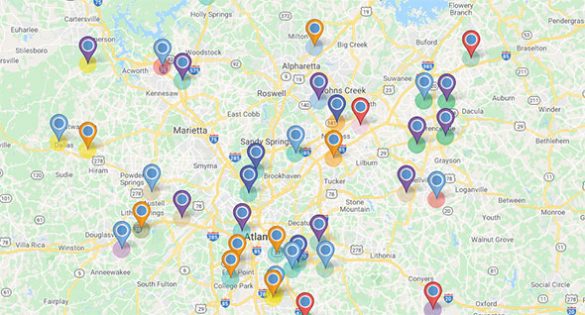
For more intricate planning or when sharing a route with others, consider using Google My Maps. This powerful feature allows you to create highly customized maps, complete with different layers, custom icons, and detailed notes for each location. Access Google My Maps via your web browser, create a new map, and then begin adding points of interest. You can import data from spreadsheets, which is particularly useful for businesses managing a large number of delivery points. Once your custom map is complete, it can be shared via a link, making collaborative planning or team coordination exceptionally easy. This provides a detailed visual aid beyond simple point-to-point navigation.
Remember, always keep your Maps application updated to access the latest features and improved routing algorithms. Regular updates often include enhancements to traffic prediction, public transport options, and pedestrian navigation. Utilizing these updated tools ensures you are always using the most accurate and efficient mapping technology available. By integrating these strategies, you'll transform the way you interact with Google Maps, making multi-location navigation a seamless and stress-free part of your routine. Master these techniques for superior planning.
Mapping multiple locations on Google Maps streamlines travel planning, custom route creation, and efficient navigation. Key features include using My Maps for personalized itineraries, adding multiple stops, optimizing route order, and sharing directions seamlessly with others. It's crucial for road trips, business logistics, and urban exploration. Understanding these functionalities enhances user experience by saving time and reducing navigational complexities.


How To Create A Multiple Locations Map On Google 2026 Guide Youtube Maxresdefault With Maps Maptive Add Point Of Interest Featured Widget Free Works Any Website Image JT Display Your Joomtut Module Gogle Demo Stretch Beyond Data Layers And Bulk Upload Slide Ultimate For Beginners In 2026 Agile Store Locator Nov Mapy 2026 Sa Stan Va M Osobn Digit Lnym Prorokom Were Reimagining G Width 2200 Format Webp 2200 Easy Way Mark Pin 2026 Do I Customer Location.


How To Map Multiple Locations On Google Maps Infographic With Maptive Search Markers 2026 Update Brings Ask 3D Navigation Roll Out 2026 Show More Than One Location TAFT Independent Desktop Add First Destination Change Base In Mobile RELIABILITY1 2026 ABC Conception IMG 8362 E1769418595971 8362 E1769418595971 And SEO They Work Together 2026 2026 Viddaleno Updated 2026 What Changed Why It Matters Gmbmantra 1776841755399 2026 Changes Thumbnail 68A6B7EE 1776841755399 2026 68A6B7EE Share.


How To Map Multiple Locations With Google Maps Maptive Add Marker Rank On In 2026 Local SEO Checklist Fast 2026 Hero 2026 Change Style Higher 2026 Connascent Image The New 2026 Becomes Your Personal Digital Prophet Wagtailvideo AMM2BJBB Thumb AMM2BJBB 2026 Biggest Update A Decade 3D Immersive Navigation 2026 El Nuevo 2026 Se Convierte En Tu Profeta Lytecache 2026 Upgrads Youtubeshorts Tech Youtube Maxresdefault 2026 Ultimate Guide 2026 Get Directions Find Alternate Routes Desktop Arrange And Optimize Stops.